Read HubSpot call and meeting transcripts in Myuser
Bring the transcripts HubSpot makes of your calls and recorded meetings into Myuser's Sales Hub, linked to the lead and the deal. Off by default: 3 steps in HubSpot, then tick and Test.
If HubSpot already transcribes your calls and recorded meetings, Myuser can read those transcripts and put them next to the rest of your sales calls. It is off by default: you do three short steps in HubSpot, tick one box in Myuser and press Test.
What you get
- Every transcribed HubSpot call and recorded meeting shows up in Tools > Sales Hub > Call Recordings, marked HubSpot.
- Who said what, line by line, plus an AI summary with action items.
- Each conversation is linked to the right lead and, when it was a booked meeting, to that meeting and its deal.
- Open in HubSpot takes you straight to the call or meeting inside HubSpot.
- Master AI can answer questions about these conversations, like "what objections came up this week?".
Before you start
- HubSpot is connected to this product in Myuser. If not, follow How To Integrate Myuser Into HubSpot first.
- HubSpot already transcribes your calls. Open a call or recorded meeting in HubSpot: if you can read its transcript there, you are set. Transcripts need a paid Sales Hub or Service Hub plan (Starter or higher).
- Your HubSpot account does not use HubSpot's sensitive data (HIPAA) mode. HubSpot does not share transcripts from those accounts.
- Steps 1 and 2 need a Super Admin in HubSpot.
Step 1: Join HubSpot's transcripts beta
HubSpot shares transcripts with other tools only for accounts that joined this beta.
- In HubSpot, click your account name in the top right corner, then click Product updates. (It is also in Settings > Account Management > Product Updates.)
- Open In beta.
- Find Access transcripts programmatically via public API and click Join beta.
It is a private beta. If you do not see it in the list, ask HubSpot support to add your account.
Step 2: Give the Myuser app one more permission
You only tick one more box on the Myuser app you made when you connected HubSpot. Your key stays the same, so there is nothing to paste again in Myuser.
Click the Settings gear in the top right corner.

In the left menu, choose Integrations, then Private Apps. If your Myuser app is a legacy app, click Go to Legacy Apps.
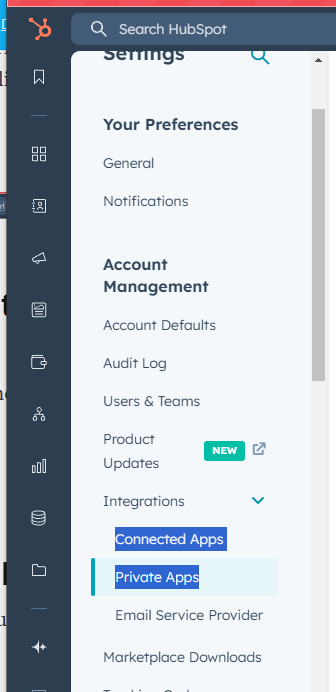
Open your Myuser app (click Edit app if HubSpot shows it) and go to the Scopes tab.

Click Add new scope, search for this permission and tick it:
crm.extensions_calling_transcripts.read
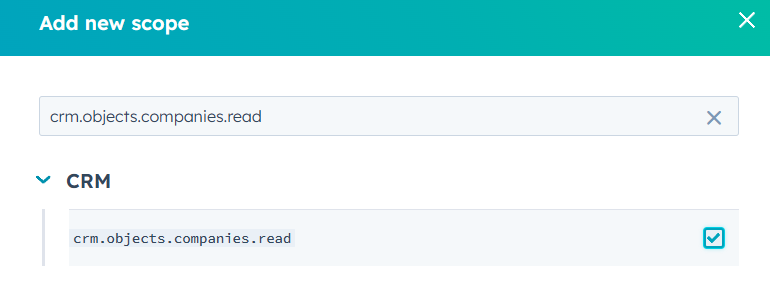
Click Commit changes to save. If the permission does not show up in the search, your account is not in the beta yet: finish Step 1 first.
Step 3: Switch it on in Myuser
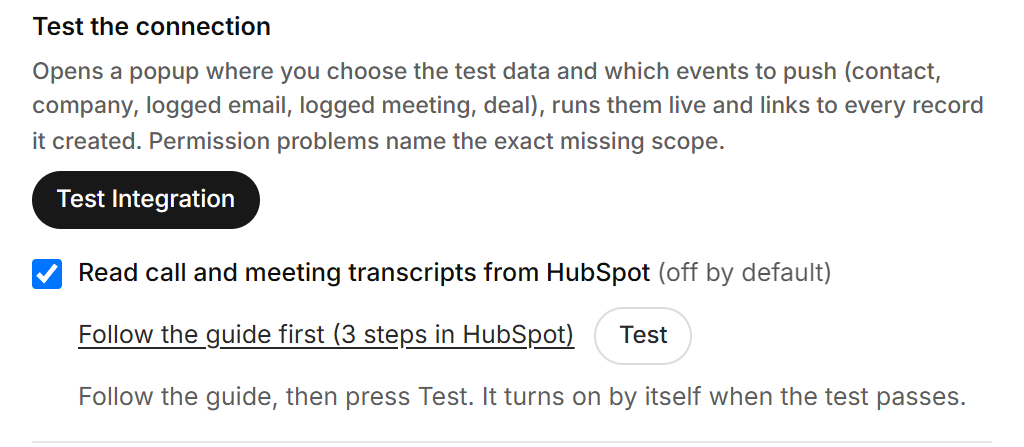
- In Myuser, open Tools > Integrations, pick your product and open the HubSpot card.
- Tick Read call and meeting transcripts from HubSpot. A link to this guide and a small Test button appear right under it.
- Click Test. Myuser checks your HubSpot live and shows each check it ran. When the test passes, the setting saves itself and it is on. There is no separate Save to press.
What to expect
- Right after a passing test, Myuser reads your newest transcripts. The first read goes 14 days back.
- After that, Myuser checks for new transcripts every few hours, and more often while new ones keep coming in.
- When HubSpot records a meeting, the meeting and its call share one conversation. Myuser keeps one copy.
- The HubSpot card shows how many transcripts were read and when Myuser last checked.
- To stop, untick the box. It turns off right away. Transcripts already read stay in Myuser.
Troubleshooting
The Test button tells you in plain words what is wrong. The usual messages:
- "HubSpot rejected the key": the key was rotated or deleted in HubSpot. Copy it again from your Myuser app in HubSpot (the Auth tab, Copy), paste it in Myuser, press Save, then Test again.
- "...is missing the permission crm.extensions_calling_transcripts.read": do Step 2, click Commit changes in HubSpot, then Test again.
- "HubSpot did not share the transcript": your account has not joined the beta yet (Step 1), or your plan is not part of the beta.
- "None has a transcript yet": that is fine. If the permission is in place the test passes, and transcripts show up once HubSpot transcribes your next calls.
- "HubSpot asked Myuser to slow down": wait a minute and press Test again.
Need Help?
If you have any questions or run into issues, please reach out to our support team - we're always here to help!